Click it for the whole picture.
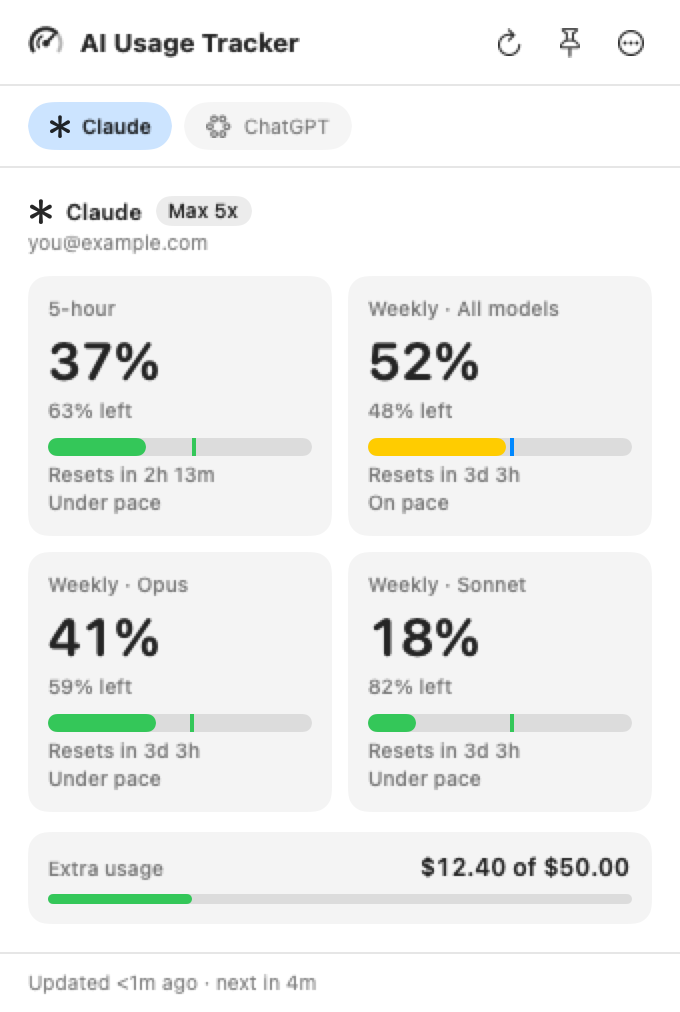
Every limit on your plan in one place, with when each one resets. Use Claude and ChatGPT? Switch between them with one click.
The tick on each bar marks where you'd be if you spread your usage evenly over the window. Ahead of it, you'll run out early, and AI Usage Tracker tells you roughly when. Behind it, you have room to spare.
The numbers in these pictures are made up.
What it does
- Shows exactly what you choose
Any mix of limits from either service, as numbers, bars, batteries or rings. Put them in one menu bar item or spread them across several.
- Signs in to your account
Setup opens Claude's or ChatGPT's own sign-in page in your browser. You sign in to your account there, and AI Usage Tracker is connected. There's no cookie to dig out of your browser and paste in, and nothing to copy from another app. AI Usage Tracker never changes the logins of Claude Code or the Codex CLI.
- Warns you before the wall
Notifications at 75, 90 and 95 percent, or levels you set, once per window. If a sign-in expires, it tells you.
- Keeps a history
Charts of how each limit filled over past weeks, with export to CSV or JSON.
- Works with Claude Code
An optional status line puts your limits at the bottom of Claude Code, read from AI Usage Tracker, so no credentials end up in a script.
- Handles several accounts
Work and personal, Claude and ChatGPT, each with its own name and settings.
Your data stays on your Mac.
- AI Usage Tracker talks only to Claude, ChatGPT and their status pages.
- Sign-ins are kept in your Mac's keychain. Settings and history stay in a folder on your Mac.
- No accounts, no analytics, no tracking. This website doesn't use cookies either.
- It reads your usage and doesn't send messages for you. The one exception, starting your 5-hour window early, is off unless you turn it on.
Free for Claude and ChatGPT.
Free Available now
Everything AI Usage Tracker does today.
- Claude and ChatGPT (Codex) plan limits
- Every menu bar style, any mix of limits
- Notifications, history and export
- The Claude Code status line
- Several accounts
- Automatic updates
Pro Coming soon
More of your AI tools in the same menu bar.
- GitHub Copilot
- Gemini
- More services as they're added
- Everything in Free
Questions
Why use this instead of checking each site?
Claude and ChatGPT each show your usage on a settings page, so you only see how close you are when you go and look, or when you hit a limit in the middle of something. AI Usage Tracker keeps the numbers in your menu bar, updates them on its own and warns you before you run out.
Which services does it support?
Claude plans (the 5-hour window, the weekly limit, per-model weekly limits such as Opus or Sonnet, and extra usage) and ChatGPT plans that include Codex (its 5-hour and weekly limits, and credits). GitHub Copilot and Gemini are coming in Pro.
Do I need an API key, or to copy cookies?
No. You sign in to your own Claude or ChatGPT account in your browser, on their own sign-in pages. The sign-in is saved in your Mac's keychain.
Can it see my chats, prompts or code?
No. It only asks Claude and ChatGPT for your usage numbers and plan. It never sees your conversations, prompts, files or code.
Does checking usage count against my limits?
No. The only feature that uses any of your quota is the optional auto-start for Claude Code, which sends one short message to start your 5-hour window at a time you choose. It's off unless you turn it on.
What do I need to run it?
A Mac with macOS 14 Sonoma or later. It runs natively on both Apple silicon and Intel Macs.
Will it change my Claude Code or Codex login?
No. It has its own sign-in and never reads or changes the logins of Claude Code or the Codex CLI.
Is it free? What will Pro add?
Everything for Claude and ChatGPT is free. Pro is coming soon and adds other AI tools, starting with GitHub Copilot and Gemini.
How do updates work?
The app checks once a day. When an update is ready you get a notification, and it installs when you click Install Update. Updates are signed, so your Mac only accepts ones that come from us.
What data does it collect?
None. There's no account, no analytics and no tracking. Your sign-ins, settings and history stay on your Mac. The privacy policy has the details.
How do I uninstall it?
Quit it, move it to the Trash and delete its data folder. The guide has the steps, including removing the Claude Code status line if you installed it.
Another question? Email support+aiusagetracker@letyournerdbeheard.com.
Install
Open the disk image, drag AI Usage Tracker into Applications and open it. A short setup signs you in and lets you pick what shows in the menu bar. After that, AI Usage Tracker keeps itself up to date.